Series: Getting Started & Tenant Foundations
So you’ve decided to turn Fabric on. Where do you actually go, and what should you touch first?
In my experience as a consultant, one of the challenges is that Fabric touches many other services and environments. The product teams have simplified the admin tasks and interfaces which makes it easier to discover and update settings quickly – if you have admin privileges across Entra, Azure, Power BI and Fabric. If you do not, I strongly encourage you to enlist an admin to join and participate in you initial proof of concept project so you can get started and make changes as you go. For those of you working in highly restricted environments, I recommend setting up a trial account using another email address and then step through the settings with you requirements in-mind. After you have assessed your needs and the related tenant settings, then you can document them and make the necessary requests in a support ticket with your admin support desk. This short article will get you started in a high-level tour.
Three nested containers
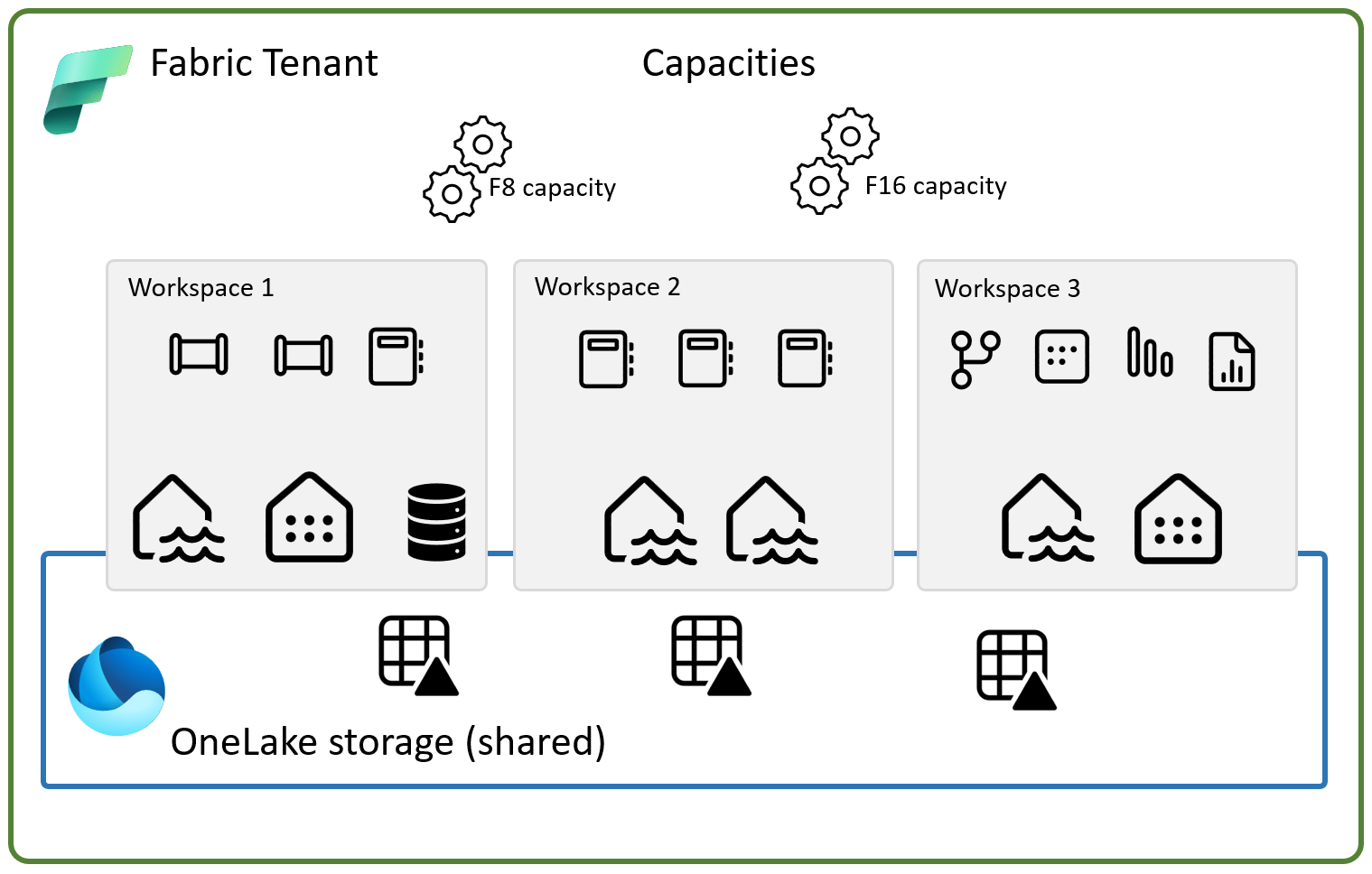
A tenant is your whole organization’s Fabric environment. Inside it, one or more capacities hold the compute you’re paying for, measured in Capacity Units. Inside each capacity, workspaces are where people actually build lakehouses, pipelines, semantic models, and reports. Think building, electrical service, and individual offices. Get comfortable with that nesting early, because most confused support tickets trace back to someone looking for a setting at the wrong level.
Where admin lives
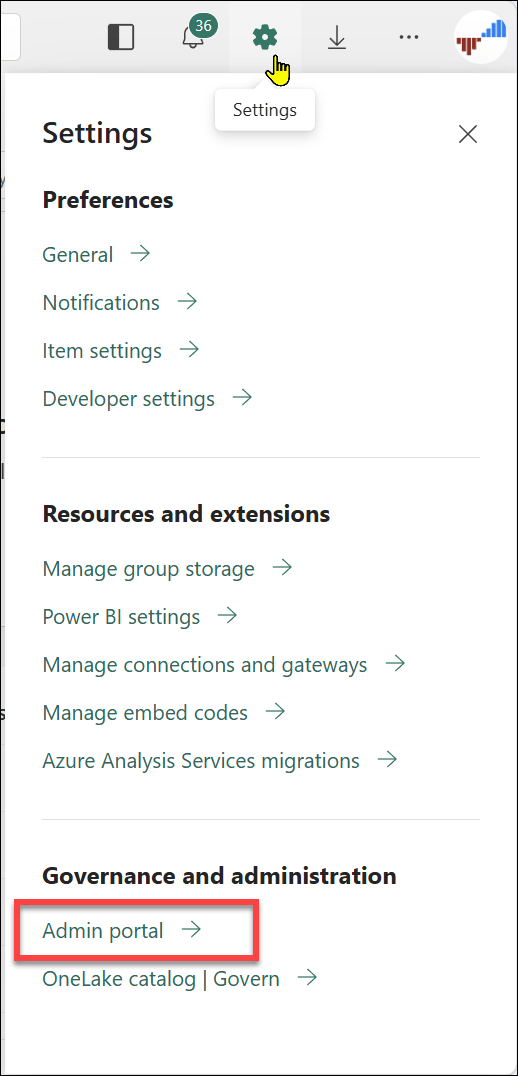
Fabric administration mostly lives in its own Admin portal, not buried inside Microsoft 365 admin — a surprise to a lot of IT leaders coming from other Microsoft products. Click the gear icon in the Fabric app and choose Admin portal — that’s where tenant settings, capacity management, and governance tools live. Microsoft 365 admin still handles licenses, users, and guest accounts. Bookmark both portals, because you’ll be bouncing between them regularly during setup.
Five settings worth reviewing on day one.
Sharing (who can share content outside your organization), export (to Excel or PDF), guest access, Copilot and AI settings (opt-in and cost-sensitive), and workspace creation rights. Everything else can wait for a governance conversation. Get these five deliberately configured before you invite a broader group in, since they’re the ones that shape what people can immediately do with content once it exists.
Two admin roles, easy to mix up
A Fabric administrator works at the tenant level — enabling features and viewing usage across the whole organization — and gets assigned through the Microsoft 365 admin center, typically by a User Administrator.
An Azure admin can create capacities in the Azure Portal. A capacity is created in a resource group which is located in an Azure region which determines where your data is physically stored. As a rule, it’s a good idea to place capacities in the same location as the home region to reduce network latency. Also keep in mind that moving data between regions introduces latency and cost where there is data ingress and egress. Here in my Azure portal, I have three capacities scaled to different sizes.
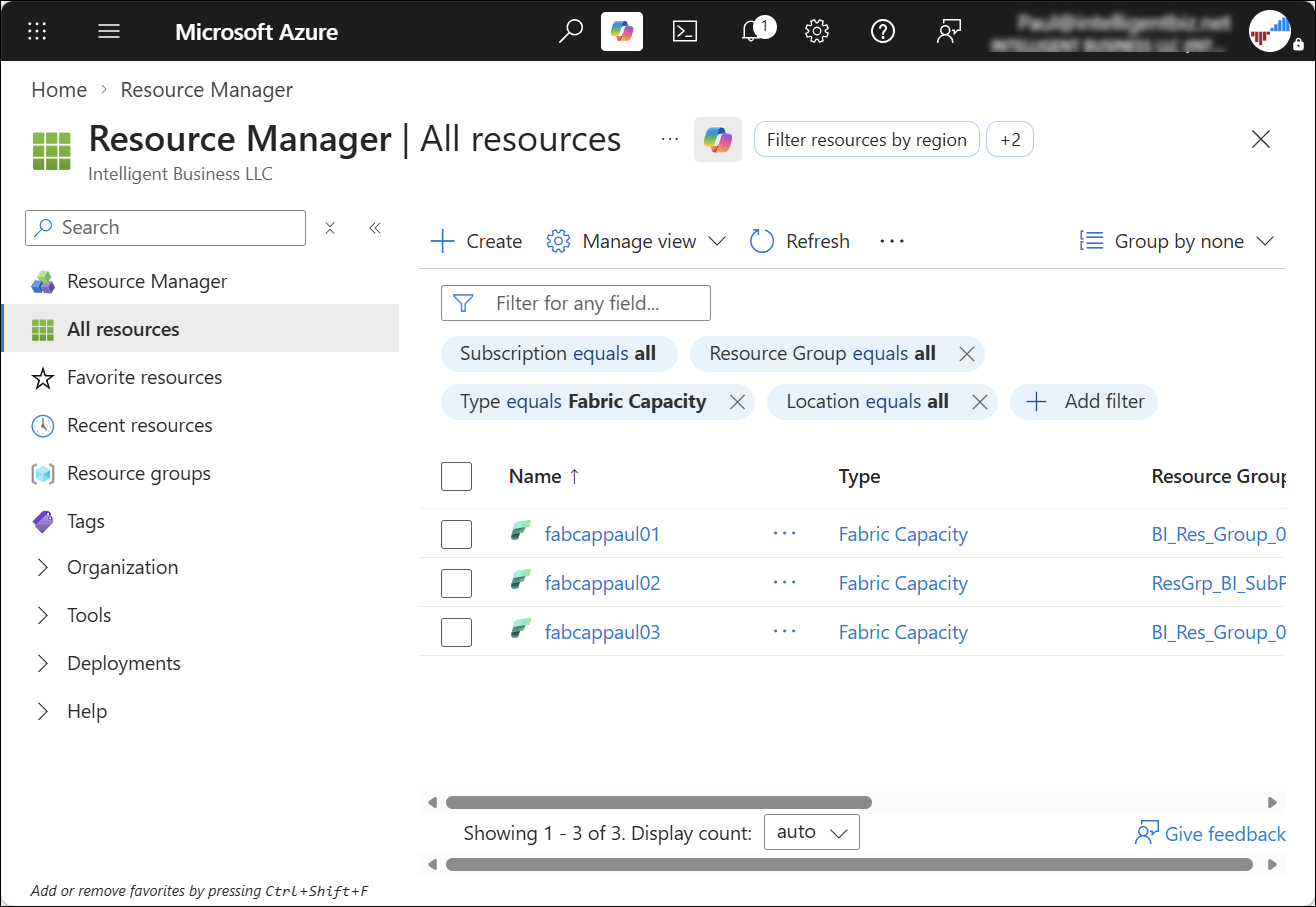
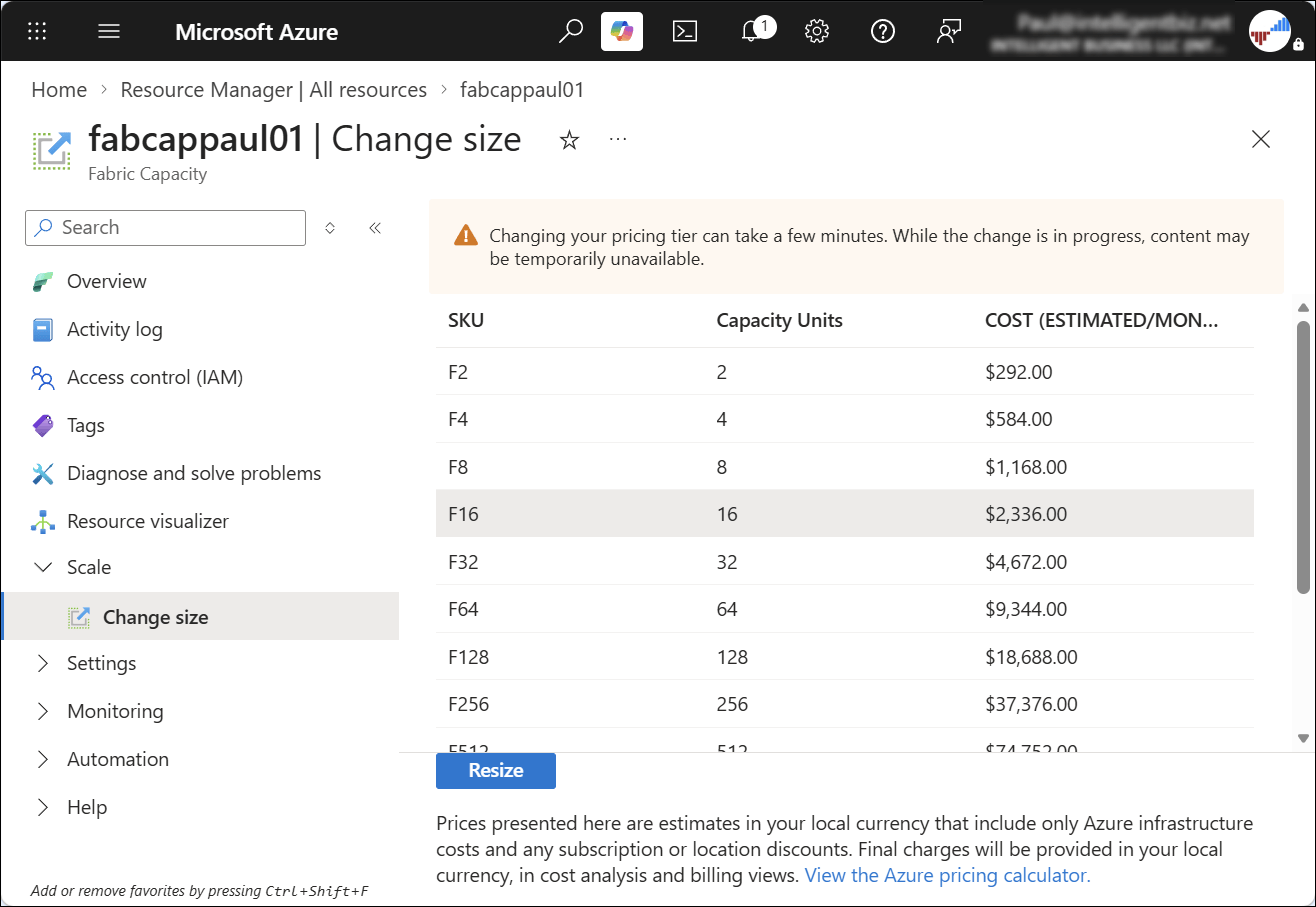
Capacities can be resized, paused and resumed.
A capacity administrator is scoped to a single capacity, assigning workspaces to it and managing who can use it, and gets set the moment that capacity is created. Assign both roles thoughtfully from the start, because a single person quietly holding every admin right becomes a bottleneck the moment they go on vacation.
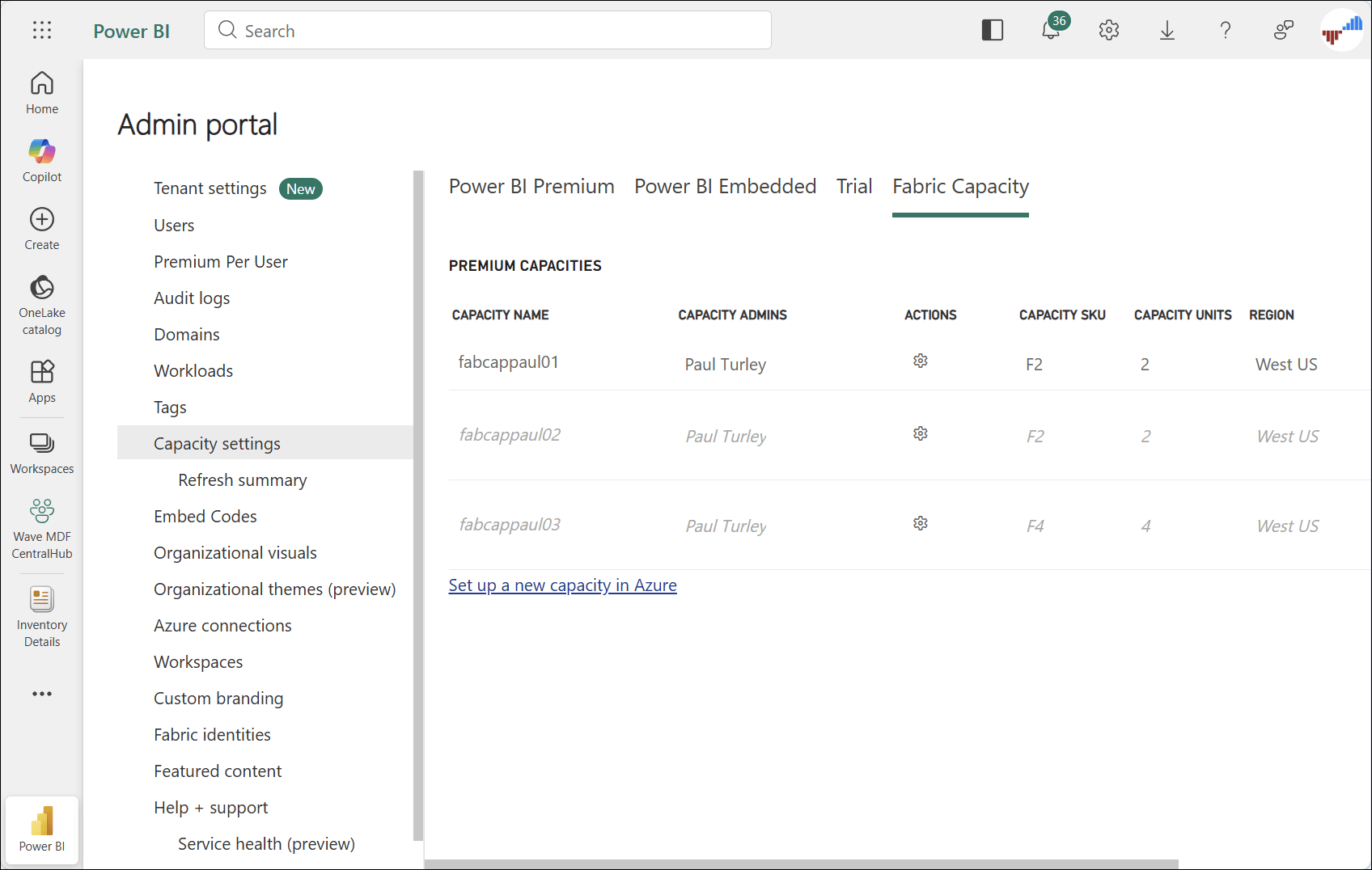
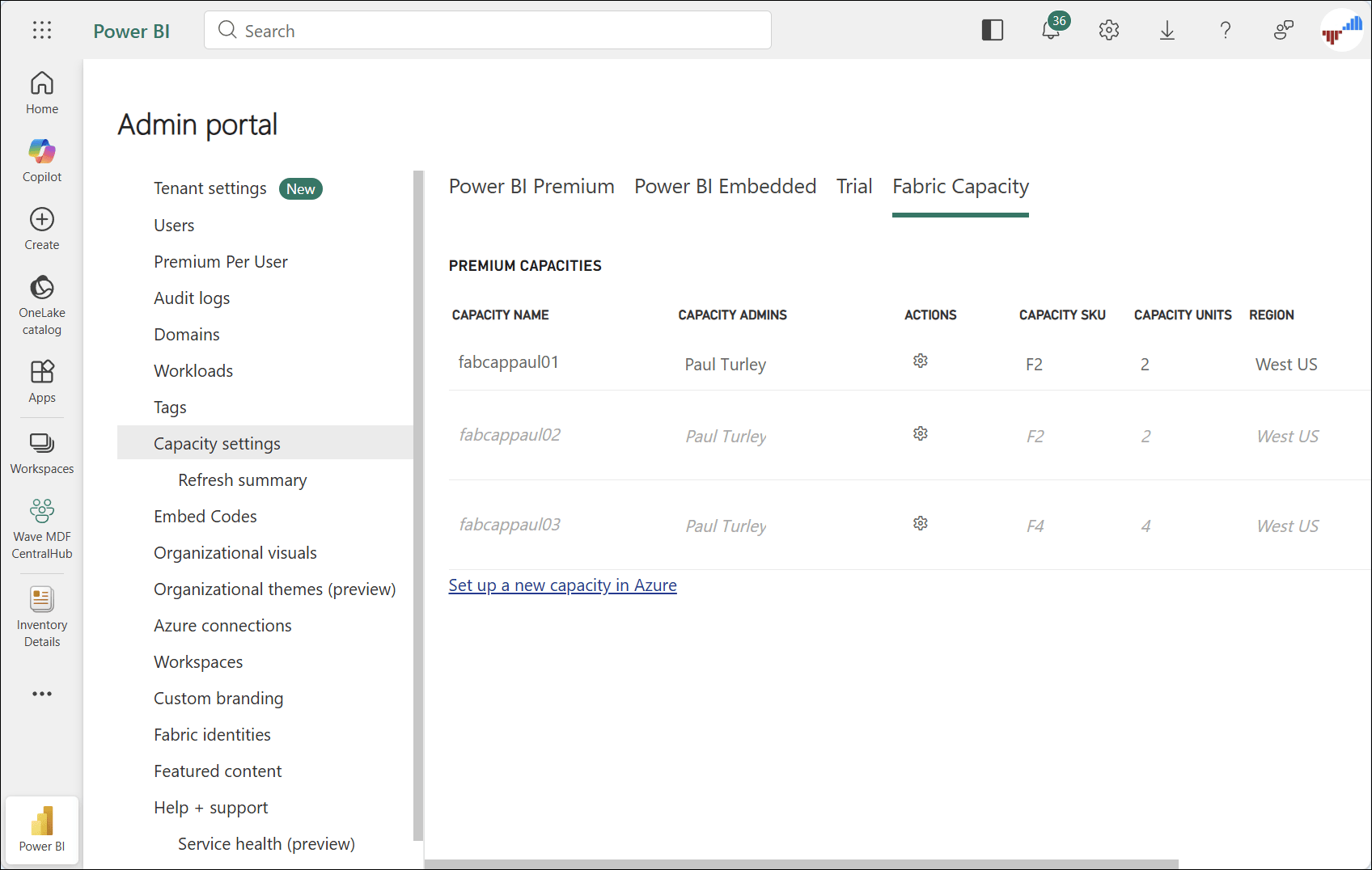
In the Fabric Admin portal, tenant settings are organized into categories. Because there are so many settings and many that are added all the time, use the search box to find settings. This example shows the capacity setting for the tenant I am signed into. These are available to be associated with workspaces in my tenant.
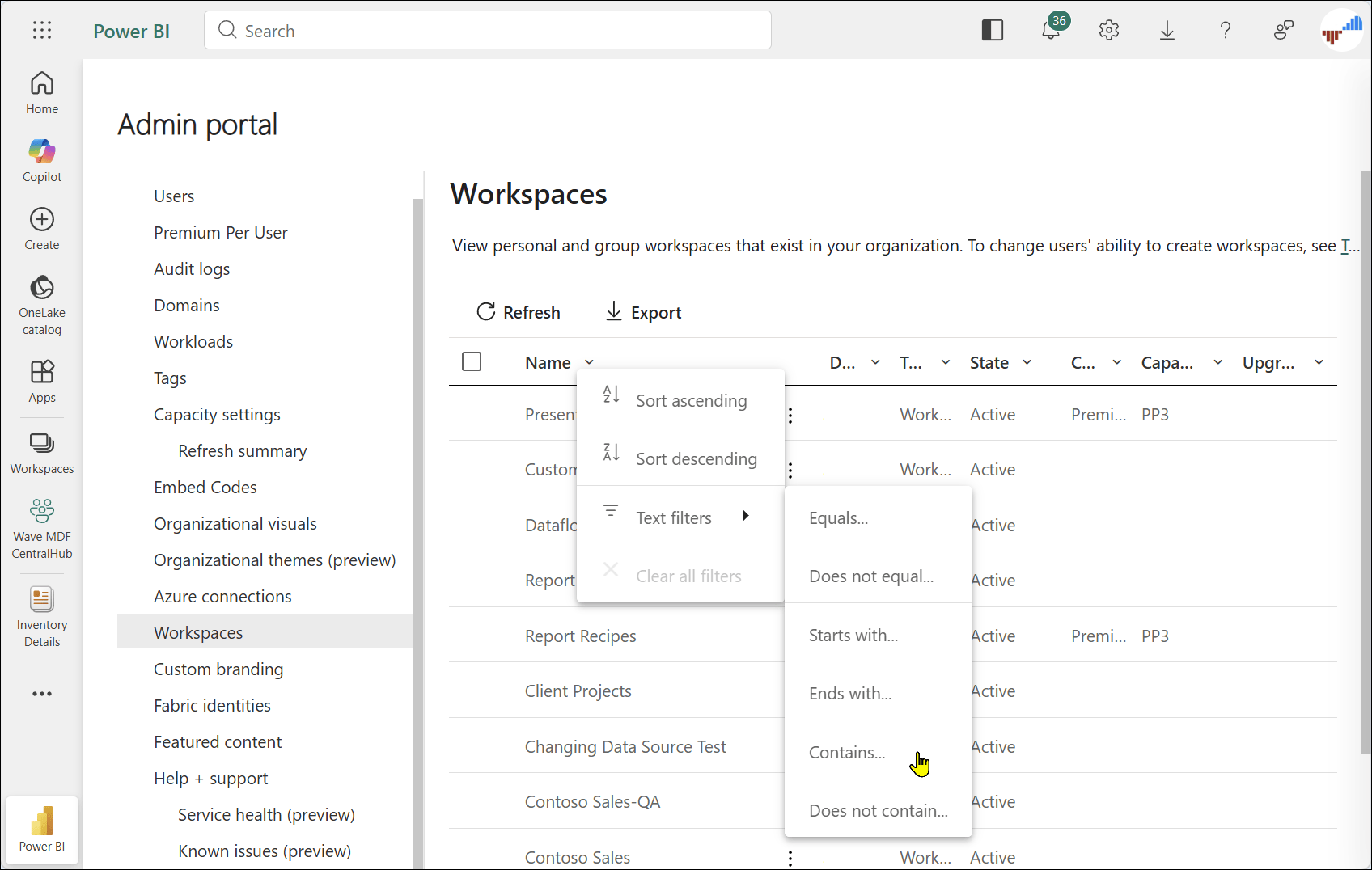
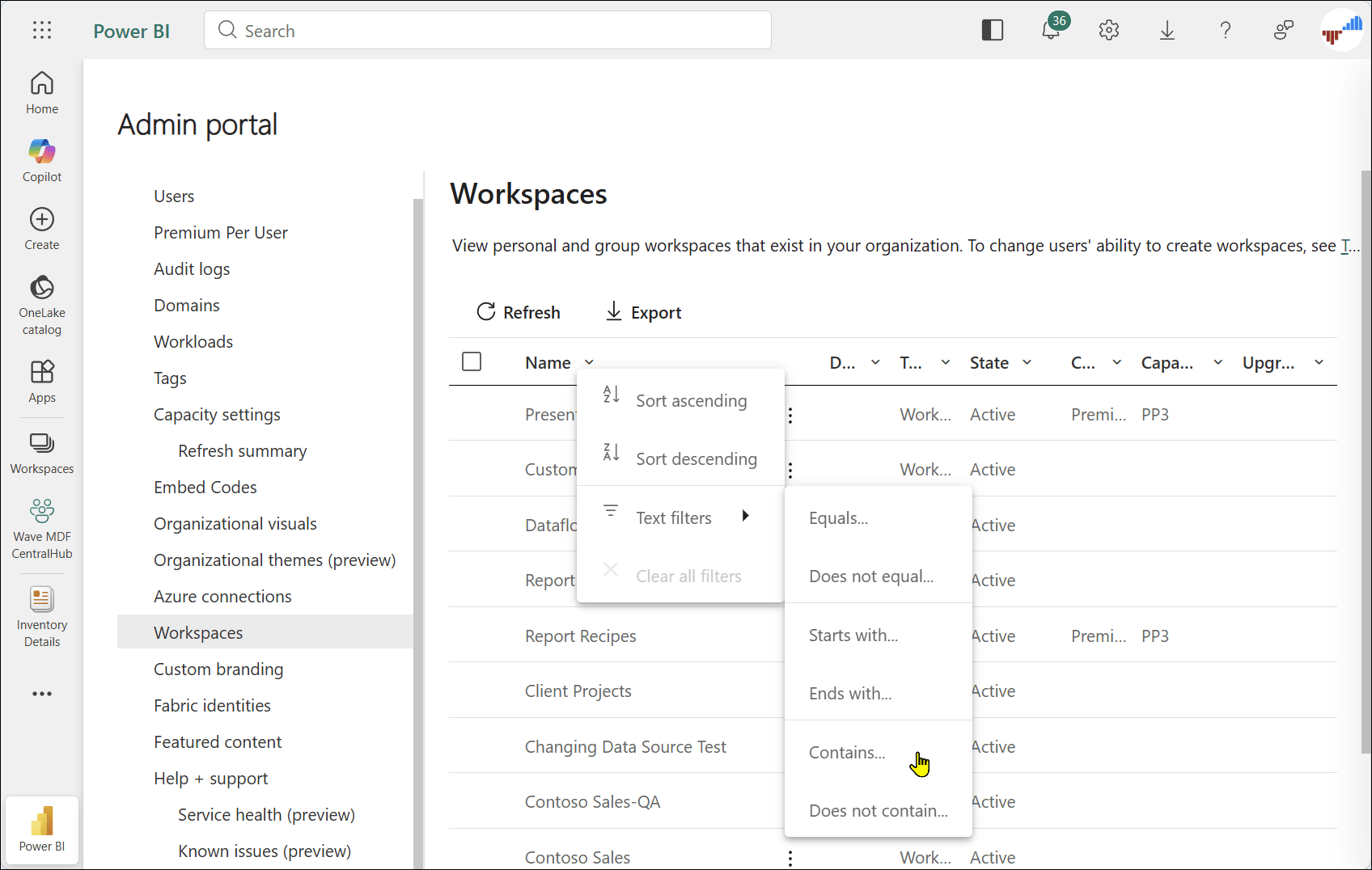
A workspace admin user who is also a capacity admin can assign the Fabric capacity in the workspace settings. If they don’t have permission to assign capacities at the workspace level, use the Admin Portal to make workspace assignments. To assign or change workspace / capacity assignments at the tenant level, use the Workspaces section of the Admin Portal. The best way to find a workspace in a mature tenant is the use the text filtering options on the Name column. Here, workspace settings can be changed and user roles may be assign.
The most common first-day mistake
Flipping Fabric on tenant-wide before anyone’s agreed on governance. Once sharing, export, and self-service are wide open across the organization, walking them back is much harder than turning them on gradually. People build habits and workflows around whatever defaults they find, and asking them to give up capabilities later always feels like a punishment rather than a policy update.
One more thing: decide who your Fabric admin and capacity admins are, review those five settings deliberately, and only then open the doors more broadly. A little sequencing up front saves months of cleanup later — and it’s a far easier conversation to have before people have built things on top of settings you’ll want to change.
To learn more: What is Microsoft Fabric administration? · Admin overview: tools, portal, and settings · Understand Microsoft Fabric admin roles · Tenant settings index · Enable Microsoft Fabric for your organization (all Microsoft Learn)
This post is part of the Fabric & Power BI Essentials series — see the full series intro and article list there.
← Previous: How Fabric Relates to Power BI Premium and Azure Synapse: Landscape and Migration Context | Next →: Fabric Licensing Explained: Per-User, Capacity-Based, and Trial Options

2 thoughts on “#3 Setting Up Your First Fabric Tenant: Admin Portal Walkthrough”