This topic is likely one of the most faceted and potentially confusing subjects in the data and Business Intelligent space. The concept of “Source Control” and “Version Control” has been around for a long time but how is it applied to BI and data platform projects, and more specifically, to Power BI? The following terms are related to this topic. Some are synonyms, siblings and parents of the others, but they are all related concepts:
- Version Control & Source Control
- ALM – Application Lifecycle Management
- CI/CD – Continuous Integration & Delivery
- DevOps – Development Operations
Version Control for Power BI
Versioning and managing Power BI projects in an enterprise setting can be as simple or sophisticated as necessary. Your projects may fit into one of the following three categories:
Solo desktop Power BI developer using simple version control
The developer saves their model and report to Power BI project files on their desktop computer. They set up a free GitHub account, create a code repository and clone the repo to their project folder. Power BI Desktop is used to perform ongoing development. VS Code or GitHub Desktop are used to commit project files to the online repo, to designate versions and comment code as files are checked into the repo. Code is managed using branches, pull requests and merging, prior to deployment.
Small team Power BI development implementing simple CI/CD & version control
A small team are co-developing a model and reports. Each developer works in Power BI Desktop using a local copy of the same Power BI project synchronized to their computers from a common GitHub repository. Each developer creates a branch and then checks in changes when each feature is completed. Branches are merged and then the integrated project code is pushed back to the local repos for every developer to continue their work.
Deployment can be managed directly from Power BI Desktop or the updates can be pushed directly to a workspace using Fabric Git integration. Projects may expand to include data engineering and storage using Fabric and OneLake with data residing in a lakehouse or data warehouse.
Formal IT team development using a DevOps framework and project methodology
Members of this project team consist of data engineers, semantic model developers and report designers. The modern data warehouse solution is built in Microsoft Fabric and Power BI. Data resides in OneLake storage using a lakehouse or data warehouse. The development workspace (DEV) is integrated with a Git repository hosted in Azure DevOps. Project assets are promoted from the DEV workspace to the TEST workspace using a deployment pipeline so designated users can validate and test reports and new project features before they are promoted to the production workspace.
Version Control and Fabric Git Integration
To manage a Power BI project under source code control, you can use any version control management tool or Git repository hosting platform like GitHub, GitLab, Bitbucket, Team Foundation Version Control (TFVC), Azure Repos, or SourceForge. You can even synchronize a local folder with a SharePoint library and enable file version control.
If you plan to graduate to fully supported DevOps and CI/CD features, I recommend that you use either GitHub or Azure DevOps because these two options are supported by Fabric workspace Git integration. If you have access to Azure DevOps, setting up a project and implementing version control is a fairly simple task, and this provides all the features of DevOps project management, ticketing, task assignments and release control. If you don’t work with Azure DevOps or want to share your code publicly, GitHub is free for public use and easy to get started.
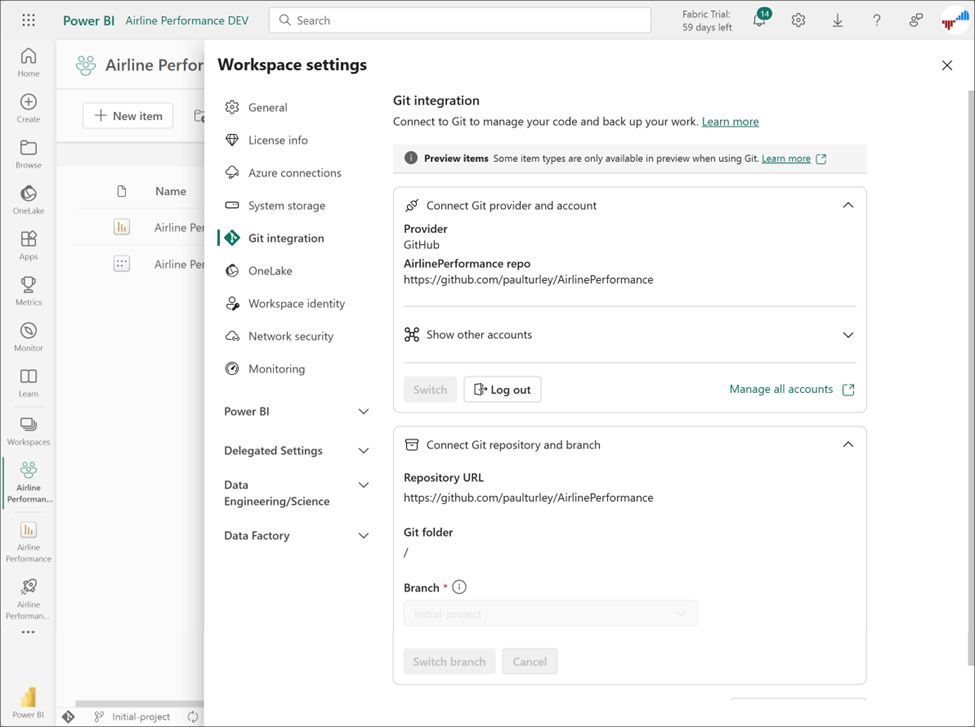
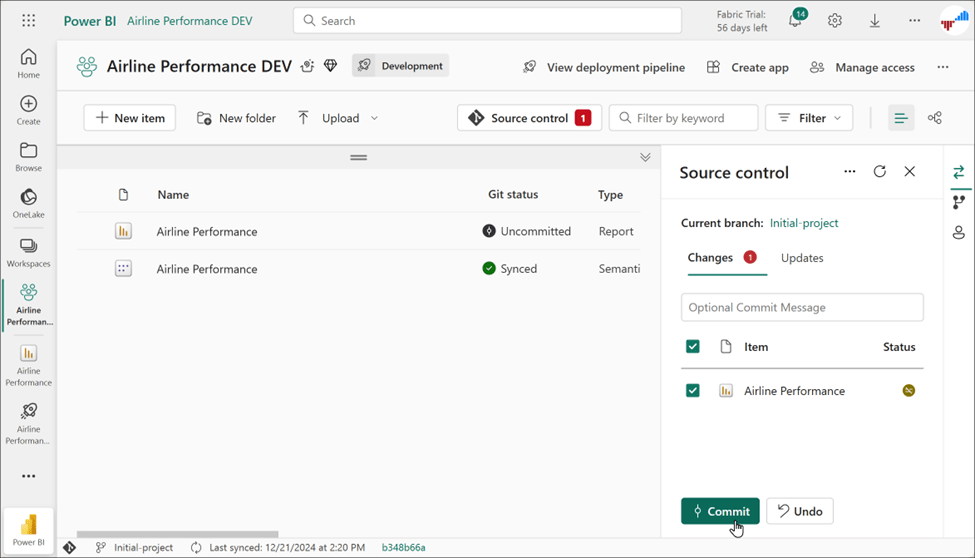
With integrated version control, I can manage code changes directly in the workspace using my web browser. The semantic model deployed to the workspace is in sync with the Git code repository and recent changes to the report have not yet been committed. Whether the report was updated in Power BI Desktop, another code editor, or by editing the report in the workspace, changes can be committed to the Git report and then synchronized for any developer who has access to the Git repository.
The default PBIX file format contains the metadata for all queries, model object definitions, measures, report visuals and pages, all zipped-up into a single binary file; but it was not intended to be read or modified by tools aside from Power BI Desktop. A few third-part applications attempted to unlock the PBIX file format but were tricky to use and not supported by Microsoft. Because a PBIX file contains data in addition to the object definitions metadata, PBIX files can be too large to store in a source code repository and only serve as backup archives that are not suitable to managing code revisions.
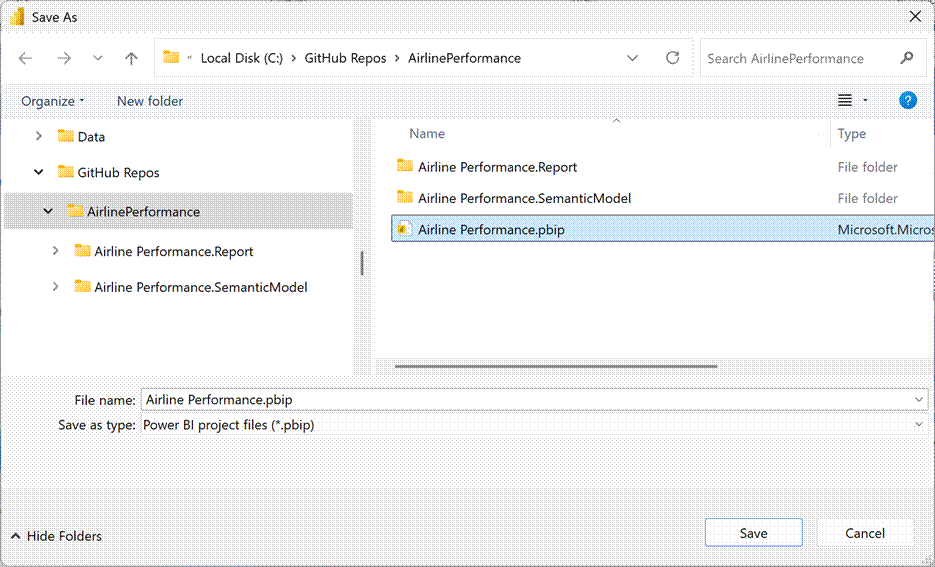
In 2023, the version control barrier was broken when the Power BI Project option was introduced. Saving your work to a project (.PBIP file) creates a folder structure and series of files for object definitions and configuration information stored in clear text. This shows the Save As Power BI project files option in Power BI Desktop. All I need to do is choose a folder and provide the project file name. The .Report and .SemanticModel folders that you see here will be created automatically.
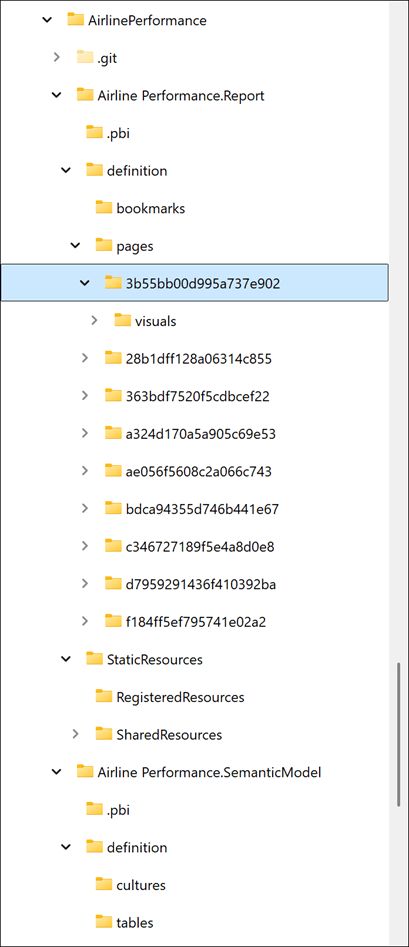
From now on, your model and report changes will be managed in the new file format, and you no longer need the PBIX file if you had saved your work in the default format previously. This shows an example of the folder structure of my project with definition files for every page in my report. You need not be concerned with the contents of all the files and folders in a project, but you now have the flexibility now to edit and manage changes using any text editor or code management tool of your liking.
As a developer, I prefer to use application development tools to manage my projects. I can open the project folder using Visual Studio Code (VS Code), a free opensource code editing and management application from Microsoft. VS Code is a robust development environment with extensions for managing Power BI projects. Features include integrated code IntelliSense, debugging, code compare & merging, Git integration, versioning and team developer collaboration.
Here is my project opened in VS Code with he model definitions in TMDL format. TMDL is the new Tabular Model Definition Language which is an enhanced and simplified replacement for TMSL, the JSON-based Tabular Modeling Scripting Language.
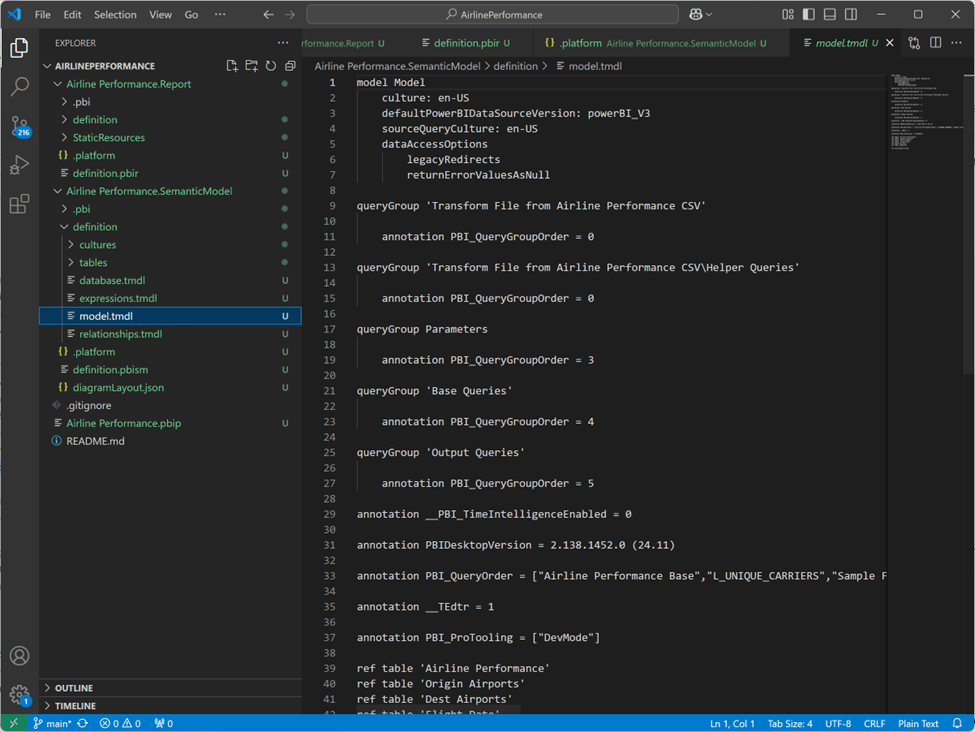
Now that the report and model are stored within a Power BI project, the code can easily be backed up and shared. You can add the folder to source code control and manage changes like any other software development project.
Developers can edit and manage the code using different tools and code can easily be modified in bulk. For example, let’s say that I had misspelled a column name that made its way all the way through the project from the queries, through the model, measures and report visuals. Tracking down all the dependencies might normally be a cumbersome task. After making a backup or branching a copy of the working project, I can perform a Find and Replace against every object in the project and make the correction. If I make a mistake, I can also easily revert the changes to the last known working state and try it a different way.
Power BI Desktop will continue to include a PBIX file in the main project folder that contains a copy of the Import mode model data. This is so you don’t have to connect to the service and reprocess the model with every change. The file is not critical to maintain project integrity and can be omitted or deleted if necessary.
The PBIX file is automatically excluded if you add the project to a local Git repo, and you can exclude that file from backups and OneDrive sync operations.
Thoughts and Advice about DevOps for BI
For the business intelligence professional, DevOps can be a confusing topic because it intersects with many disciplines and philosophies. I’m hopeful that a bit of reflection on my own experience over the years provides some valuable insight. I have seen DevOps and version control implemented on dozens and perhaps hundreds of projects, with different degrees of sophistication and control.
If you work in a software development environment where DevOps is practiced as part of your team’s development culture, you know that DevOps truly is a holistic methodology, including practices can be very extensive and regimented. Software development tends to be a linear process, whereas data and BI projects are more iterative in nature. Frankly, DevOps purists can be down-right militant about enforcing all the rules, which many BI specialists tend to skirt, in an effort to move quickly.
If you are a business intelligence analyst or developer and suddenly find yourself working on a team where DevOps is practiced, you will likely find the process to be more strict and less flexible than typical ad hoc BI development. The key is to strike the right balance for your organization’s needs.
There is certainly a flavor of DevOps that seem to be over-engineered and counterproductive. DevOps practices exist because they address critical needs in a software development environment, but you should find the right balance for your organization’s project needs. Be mindful that the very purpose for business intelligence is to deliver insights and reporting insights directly to business users, which entails quick iterations through the entire process – from requirement refinement to report delivery, with several steps in-between.
Release Management Using Deployment Pipelines
This feature of Power BI and Fabric represents the simple elegance that make this product so outstanding. Deployment pipelines make release management as straightforward as it could possibly be. The concept is simple: a deployment pipeline consists of multiple workspaces that represent stages in the deployment cycle. There are typically three stages but there can be two or more, depending on your needs and the sophistication of the solution lifecycle. This shows the common pattern of three stages consisting of a development, test and production workspace. Any combination of items may be selected from the list of items for deployment. In this example, items in the TEST stage are compared to DEV. The Airline Performance report has been updated and is shown to be “Different from the source”, so it should be promoted to the TEST workspace.

Each workspace must be assigned a Fabric capacity (or previously, a Power BI Premium capacity.) Traditionally, the development environment is referred to as “DEV” and the production environment is called “PROD”, although the PROD workspace is often not labeled as such since it is the only workspace visible to users. Intermediate stage workspaces might be designated as “TEST” or “QA” and used for testing and validation purposes. In a small-scale and less formal project, you might only have DEV and PROD stages in the deployment pipeline, and coordinate doing the testing in the DEV workspace. Larger-scale solutions might have a TEST stage for integration testing and a QA stage for user-acceptance testing.
In our example, development occurs in the DEV workspace. After assets and features are added to a new version of the solution, the release manager compares the DEV and TEST stages for changes. After validating the expected changes between the two versions, they deploy the new version from DEV to TEST. In the TEST workspace, testers run pipelines and transformation queries and validate the results. They process semantic models and check the data for consistency. They test reports for accurate results and functionality. Errors are logged and bugs are corrected in the DEV workspace. The process is repeated until testing succeeds. After the new version is accepted and signed off by the testers, the release manager compares and then deploys the TEST stage version to the PROD workspace from the deployment pipeline.
Deployment rules enable you to configure data sources and parameters for each stage of the deployment pipeline. Her are the deployment rules for the TEST stage. Since the Airline Performance semantic model includes a query parameter for the file source path, this parameter may be altered to read files from a network file share or cloud storage container, specifically for testing purposes. Deployment rules apply to every stage in the pipeline except DEV.


One thought on “Continuous Delivery & Version Control for Power BI”